
Complete a LearnDash Topic Only When the Learner Passes the Storyline Quiz
A learner opens the Topic, skips through the Storyline module, ignores the quiz and clicks Mark complete. LearnDash accepts it, the course progress bar moves on, and the certificate is one step closer. For compliance, CPD or any training where passing matters, that is a problem.
This guide shows how to make the Topic complete only when the module reports a pass, and what to set in Storyline (or Rise) so it does.
Why LearnDash cannot do this by itself
LearnDash tracks its own progress: a Topic is complete when the learner presses Mark complete, or when a LearnDash quiz says so. A Storyline quiz is not a LearnDash quiz. Its result lives inside the SCORM package, and LearnDash never sees it unless something reads it and acts on it.
So two things are needed: a SCORM player that records the result, and a rule that turns “passed” into “Topic complete”.
Step 1: Make the course report a pass
- In Storyline, publish for LMS as SCORM 1.2.
- In Reporting and Tracking, track using the quiz result and pick the results slide of the quiz that matters.
- Set reporting to Passed/Failed, so a fail is recorded as a fail rather than left as Incomplete.
- Set the passing score on the quiz itself, in Storyline.
For Rise, export as LMS, SCORM 1.2, and track by quiz result.
Step 2: Record the result in LearnDash
Install the free Lessonbay SCORM Player, open the Topic, enable the SCORM package box and upload the ZIP. (The full walkthrough is in how to add a Storyline course to LearnDash.)
At this point every attempt is recorded with its status and score, and you can see who passed under LearnDash LMS > SCORM report. The learner still completes the Topic with Mark complete.

Step 3: Complete the Topic from the result (Pro)
The Pro add-on adds a Completion rule to the same Topic box. Pick one per Topic:
| Rule | What happens |
|---|---|
| Require SCORM pass | The Topic is marked complete only when the package reports a pass (status or score). |
| Require SCORM completion | The Topic is marked complete when the package reports completion, pass or not. |
| Track attempts only | Attempts and scores are saved, but the Topic is never completed automatically. |
For a pass requirement, also set:
- Passing score threshold: in pass mode, an attempt below this score counts as failed even if the package reports completion. Leave it at zero to use the package’s own result.
- Remove LearnDash “Mark complete” button: so the learner cannot complete the Topic by hand.
- Maximum attempts per learner (optional): counts completed, passed, failed and abandoned attempts. Zero means unlimited.
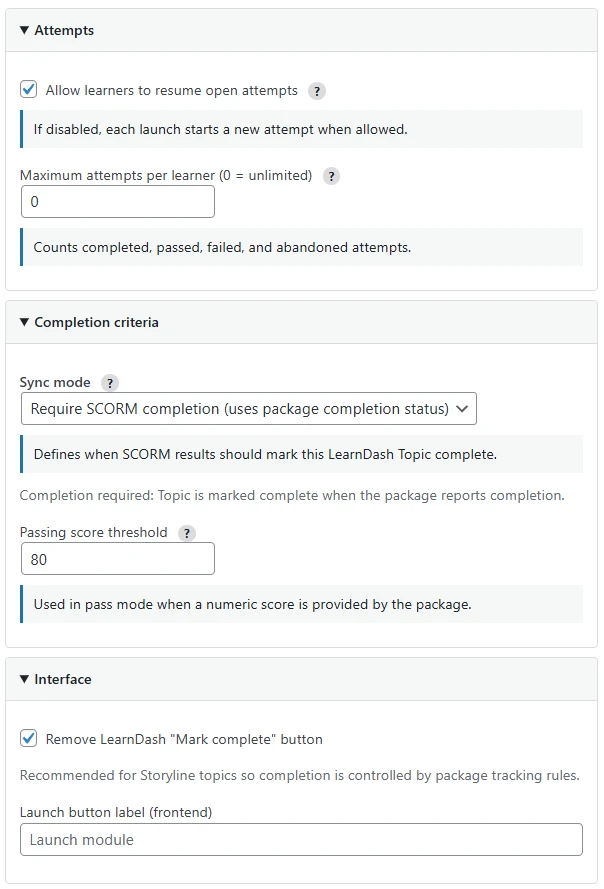
Now a learner who passes sees the Topic complete straight away, and a learner who fails can try again until they pass or reach the limit.
Before you switch it on
Run one attempt yourself and check the SCORM report. If the package has never reported a score, a “Require SCORM pass” rule based on score can never be met, and with Mark complete hidden the learner would be stuck. Pro warns about this on the Topic screen once learners have used the package, but it is quicker to test first.
Without Pro
You can still enforce a pass by hand: filter the SCORM report by status Failed or In progress, and follow up with those learners before you issue certificates. It works for small groups; Pro removes the manual check.
Pro is €79 a year for one site, with a 14-day money-back guarantee.