
Documentation
Lessonbay SCORM Player 3.0.1 (free) and Lessonbay SCORM Player Pro 3.0.0 · Updated November 2026
Getting started
This guide takes you from installing Lessonbay SCORM Player to a Storyline, Rise or other SCORM 1.2 course running inside a LearnDash Topic, with every attempt recorded.
Requirements
- WordPress 6.0 or newer and PHP 8.0 or newer
- LearnDash, active (packages are attached to LearnDash Topics and access is checked through LearnDash)
- Your course published for an LMS as a SCORM 1.2 package, for example an Articulate Storyline or Rise LMS export
The free plugin uploads the package to a Topic, launches it in a player inside LearnDash, records the result exactly as the package reports it, and resumes learners where they left off. Learners complete the Topic with the standard Mark complete button. Pro completes the Topic automatically from the result and adds completion rules, attempt limits and the detailed report.
Lessonbay SCORM Player (free)
- Upload SCORM 1.2 packages to a Topic
- Launch in a secure player
- Status, score and time recorded as reported
- Resume where the learner left off
- Status, attempt count and last activity on the launch box
- Your own launch button label
- SCORM report with filters
Lessonbay SCORM Player Pro
- Automatic Topic completion
- Completion rules and passing score
- Maximum attempts per learner
- Hide Mark complete on self-completing Topics
- Detailed report with every attempt
- CSV export and attempt deletion
- Warnings when a package can never complete its Topic
Installation
Install the free plugin
- Log in to your WordPress admin.
- Go to
Plugins → Add Newand search for Lessonbay SCORM Player. - Click Install Now, then Activate.
- You now have
Settings → Lessonbay SCORMin the admin menu.
Or download it from WordPress.org.
Moving from Storyline for LearnDash
Storyline for LearnDash is now Lessonbay SCORM Player. Deactivate the old plugin, then install Lessonbay SCORM Player as above. Your packages, attempts and settings carry over. If you had Pro, install Lessonbay SCORM Player Pro 3.0.0 from your account page.
Global settings
Set your defaults once, so each Topic is quicker to set up.
- Go to
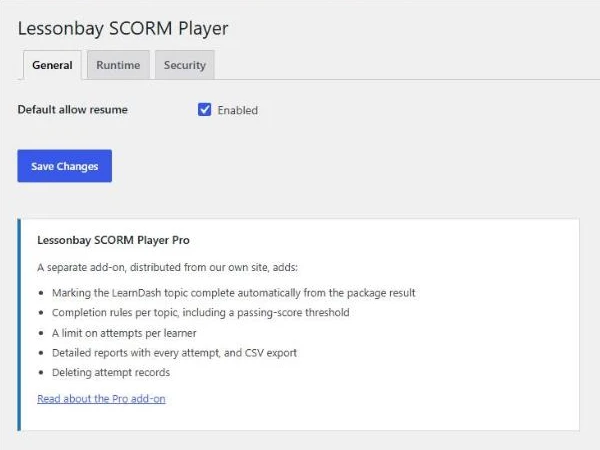
Settings → Lessonbay SCORM. - General: choose whether learners can resume by default.
- Runtime: timing values such as heartbeat and commit interval. The defaults suit most sites.
- Security: debug options; turn them on only while troubleshooting.
- With Pro active: the default passing score, completion rule and attempt limit, and the Pro Activation tab for your licence key.
Upload a SCORM package
- Edit the LearnDash Topic where the course should run.
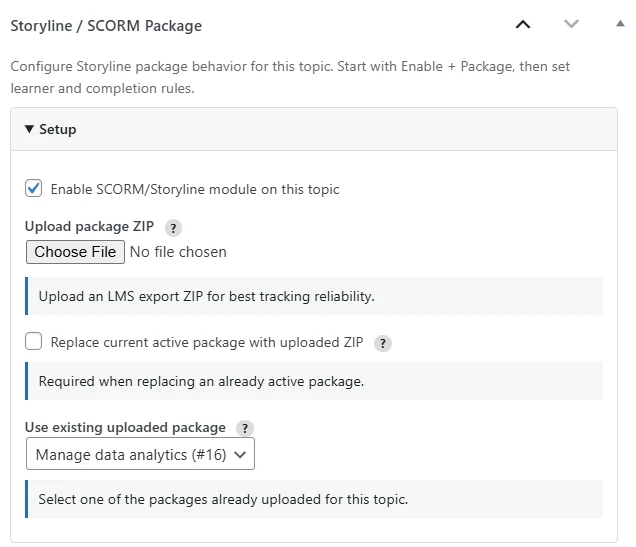
- In the SCORM package box, tick Enable SCORM/Storyline module on this topic.
- Under Upload package ZIP, choose your LMS export ZIP. Do not unzip it. Large packages take a moment; keep the tab open.
- To swap the course later, upload the new ZIP and tick Replace current active package with uploaded ZIP. Or pick a package you uploaded before under Use existing uploaded package.
- Save the Topic. The box shows Detected package type; it should read SCORM 1.2 package.
Step by step with Storyline: How to add an Articulate Storyline course to LearnDash. For Rise: How to publish a Rise course for LearnDash.
Rules and completion
Free plugin
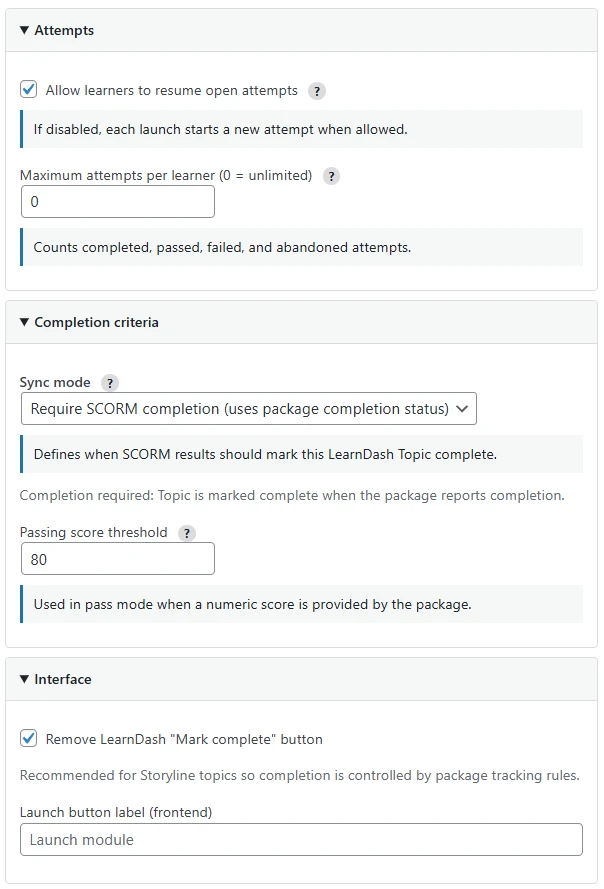
- Choose whether learners can resume an open attempt (Allow learners to resume open attempts).
- Set the Launch button label learners see, for example "Start the module".
- Learners complete the Topic with LearnDash's Mark complete button.
With Pro
- Choose the completion rule: Require SCORM pass, Require SCORM completion, or Track attempts only.
- Set the Passing score threshold. In pass mode, an attempt below it counts as failed even if the package reports completion. Zero uses the package's own result.
- Set Maximum attempts per learner (0 = unlimited). Completed, passed, failed and abandoned attempts all count.
- Tick Remove LearnDash "Mark complete" button so the Topic can only complete from the result.
Completion rules, passing score and attempt limits are in Pro.
From €79 a year, with a 14-day money-back guarantee.
Before hiding Mark complete with a pass rule, run one attempt yourself and check the package reports a score. A package that never reports one cannot meet the rule; Pro warns about this on the Topic screen once learners have used it.
Test and check the report
- Log in as a test learner enrolled in the course, or use a private window.
- Open the Topic and launch the module.
- If resume is on, close it part way and open the Topic again: the box offers Resume attempt.
- Finish the module, including the quiz if you track on it.

Then open LearnDash LMS → SCORM report. Each learner and Topic appears with total attempts, score and last activity, with filters for course, lesson, Topic, status and learner. With Pro, open a row for every attempt, export CSV, or delete attempts.

Troubleshooting
The course plays but nothing is recorded
Almost always a Web export instead of an LMS export. A web export has no SCORM calls. Check the ZIP: an LMS package has imsmanifest.xml in its top folder. Publish again for LMS as SCORM 1.2 and replace the package.
The package type says SCORM 2004 or xAPI
Publish again as SCORM 1.2. The plugin plays SCORM 1.2 packages.
Status is complete but there is no score
The course tracks by slides viewed or course completion, not by a quiz, so it has no score to report. Track by quiz result if you need one.
The learner cannot launch the module
Launch is checked against LearnDash access on every attempt. Make sure the learner is enrolled in the course and the Topic is available to them.
More causes, with fixes: Storyline not tracking in LearnDash: six causes and fixes. Still stuck? Email info@learndashstoryline.com.
Upgrading to Pro and your licence
- Choose a plan on the pricing section and pay securely by Stripe.
- Your licence key and the Lessonbay SCORM Player Pro ZIP are on your account page.
- In
Plugins → Add New → Upload Plugin, upload the ZIP, then Install Now and Activate. - Enter the key under
Settings → Lessonbay SCORM → Pro Activation. - Keep both plugins active: Pro extends the free plugin. Your packages, attempts and settings stay as they are.
Renewal and expiry
- A licence lasts one year. Payment is one-off: nothing is charged automatically.
- To renew or change plan, buy the plan again while logged in to your account. The new licence starts when the current one ends, so no days are lost.
- If a licence expires, Pro features and Pro updates stop. The free plugin keeps working and updating from WordPress.org, and learner records are kept.
Data and uninstall
- All data stays in your WordPress site: attempts and runtime data in the plugin's own database tables, packages in the uploads folder. The plugin makes no outside requests.
- Deactivating keeps everything.
- Deleting the free plugin removes its tables, settings and uploaded packages. Export what you need first (CSV export is in Pro).
- Deleting Pro removes only Pro's own data; the free plugin's data stays.
FAQs
Does it support resume and attempts?
Yes. Resume and the attempt count are in the free plugin. Pro adds a maximum number of attempts per learner.
How is completion handled?
In the free plugin the learner uses the standard LearnDash Mark complete button. Pro completes the Topic automatically, with a rule per Topic: require pass, require completion, or track only.
Does it work with any Storyline export?
Yes, as long as it is published for an LMS as SCORM 1.2. Storyline and Rise LMS exports both work.
Does it work with SCORM 2004, xAPI or cmi5?
No. The plugin plays SCORM 1.2 packages. The Topic screen tells you when a package is SCORM 2004 or xAPI so you can publish it again as SCORM 1.2.
Does this replace SCORM Cloud, Tin Canny or GrassBlade?
For SCORM 1.2 packages, yes: they play on your own site and the results go into your WordPress database, with nothing charged per learner. It is not an xAPI or LRS tool; for xAPI, cmi5 or a Learning Record Store, GrassBlade or Tin Canny is the better fit.
How reliable is tracking?
The package runs in a SCORM 1.2 player on your own site and every call it makes is written to your database as it happens. There is no external service to sync with.
More questions are answered on the homepage and in the blog.