
How to Add an Articulate Storyline Course to LearnDash (Step by Step)
This guide takes an Articulate Storyline course from the publish window to a LearnDash Topic, with the learner’s score, status and resume point recorded. It takes about ten minutes the first time.
You need LearnDash, WordPress 6.0 or newer, PHP 8.0 or newer, and the free Lessonbay SCORM Player plugin.
Step 1: Publish the course for an LMS
- In Storyline, click Publish and choose the LMS tab. Do not use Web: a web export has no SCORM calls and reports nothing.
- Set the LMS to SCORM 1.2.
- Open Reporting and Tracking. Choose when the course counts as finished: after a number of slides viewed, or from a quiz result. If you track by quiz, check that every learner path reaches the results slide.
- Choose how the result is reported. Passed/Failed records a fail as a fail; Passed/Incomplete leaves a learner who fails as Incomplete.
- Publish, and choose to save the output as a ZIP file.
Quick check: open the ZIP. If you see imsmanifest.xml in the top folder, it is an LMS package. If you only see story.html, it was published for Web.
Step 2: Install the plugin
- In WordPress go to Plugins > Add New, search for “Lessonbay SCORM Player”, install and activate it.
- Make sure LearnDash is active. The plugin checks access through LearnDash before every launch.
Step 3: Attach the package to a Topic
- Open the LearnDash Topic where the course belongs, or create one.
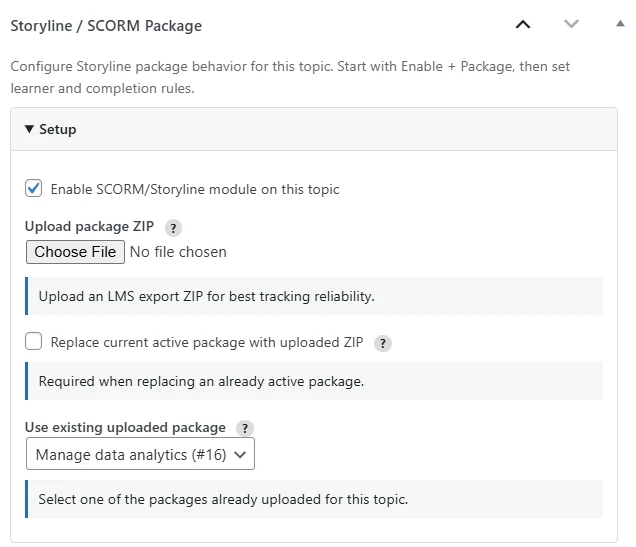
- Find the SCORM package box and tick Enable SCORM/Storyline module on this topic.
- Under Upload package ZIP, choose the file from step 1. Large courses take a moment to upload; keep the tab open.
- After saving, the box shows Detected package type. It should say SCORM 1.2 package. If it says web export, go back to step 1.
- In the Attempts tab, decide whether learners may resume an open attempt (Allow learners to resume open attempts). In Interface, set the Launch button label, for example “Start the module”.
- Save the Topic.
The course is now part of the Topic. You do not need to rebuild anything in LearnDash: an existing course structure works as it is.
Step 4: Test it as a learner
- Log in as a test learner enrolled in the course (or use a private window).
- Open the Topic. You will see a launch box with the attempt status and your button.
- Launch the module, go part of the way, and close it. Open the Topic again: the box offers Resume attempt.
- Finish the module, including the quiz if you track on it.

Step 5: Check the result
As an administrator, open LearnDash LMS > SCORM report. Each learner and Topic appears with total attempts, score and last activity, and you can filter by course, lesson, Topic, status (completed, passed, failed, abandoned and so on) and learner.

If the attempt is there but no score appears, the course is probably tracking by slides viewed rather than by quiz. If no attempt appears at all, see Storyline not tracking in LearnDash: six causes and fixes.
What about completing the Topic?
With the free plugin, the result is recorded and the learner completes the Topic with LearnDash’s normal Mark complete button. That suits courses where the module is part of the lesson rather than a test.
If the Topic should only complete when the learner actually passes, that is what the Pro add-on does: it completes the Topic from the reported result, and can hide the Mark complete button. See how to complete a LearnDash Topic only when the learner passes.
Common questions
Can I replace the course later?
Yes. Upload a new ZIP and tick Replace current active package with uploaded ZIP. The Topic and its settings stay as they are.
Does it work with Rise?
Yes, with a Rise LMS export as SCORM 1.2. See how to publish a Rise course for LearnDash.
Where is the learner data stored?
In your WordPress database, in the plugin’s own tables. The plugin makes no outside requests.