
How to Publish an Articulate Rise Course for LearnDash
Articulate Rise courses run well inside LearnDash, as long as they are exported the right way. The export choice decides whether LearnDash ever learns that a learner finished the course or passed its quiz. This guide covers the export settings that matter and how to attach the result to a LearnDash Topic.
Export for an LMS, not for Web
Rise offers several export types. Only an LMS export talks to an LMS:
- Web: plays in any browser, reports nothing. Fine for open content, useless for tracking.
- LMS: produces a SCORM (or xAPI/cmi5) package that reports progress and results.
In Rise, open the course, choose Export, then LMS.
Choose SCORM 1.2
Set the LMS standard to SCORM 1.2. It is the most widely supported version, and it is what Lessonbay SCORM Player plays. SCORM 2004, xAPI and cmi5 exports need a different kind of player.
Decide what “finished” means
Rise asks how to track completion. The two usual choices are:
- Course completion: the course reports complete once the learner has viewed the share of lessons you set. Good for reading or awareness content.
- Quiz result: the course reports from a chosen quiz. Use it when the learner must show they understood, for example in compliance or CPD training.
If you track by quiz, the learner has to reach and submit that quiz for anything to be reported. A course that ends before the quiz never reports a pass.
Then export. Rise downloads a ZIP. Do not unzip it: upload the ZIP as it is.
Quick check: the ZIP should contain imsmanifest.xml and a scormcontent folder. If you only see an index.html and no manifest, it was exported for Web.
Attach it to a LearnDash Topic
- Install and activate the free Lessonbay SCORM Player plugin.
- Open the Topic, find the SCORM package box and tick Enable SCORM/Storyline module on this topic.
- Upload the Rise ZIP under Upload package ZIP and save. The box should show SCORM 1.2 package as the detected type.
- Set the launch button label and resume option, and save the Topic.
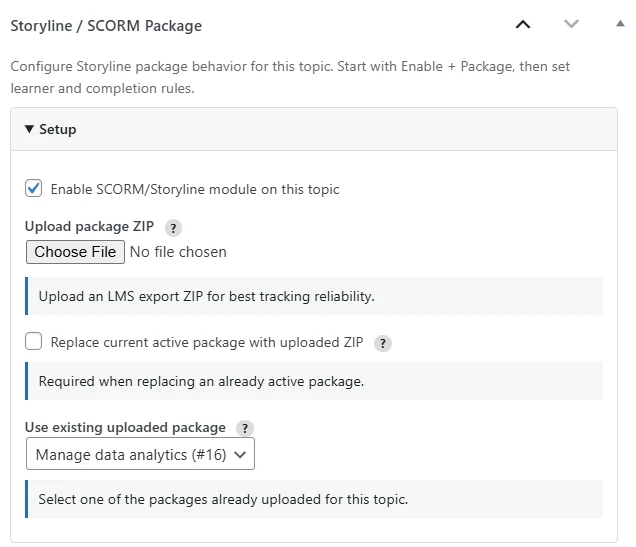
Learners now launch the Rise course from the Topic. Their status, score (if the course reports one), attempts and resume point are recorded, and you can see them under LearnDash LMS > SCORM report.
When the Topic should complete by itself
With the free plugin, the learner presses LearnDash’s Mark complete button when they are done. If you track a quiz and want the Topic to complete only when the learner passes, the Pro add-on does that from the result Rise reports. The details are in how to complete a LearnDash Topic only when the learner passes; the steps are the same for Rise and Storyline.
Troubleshooting
- The course plays but nothing is recorded: almost always a Web export. Export again as LMS, SCORM 1.2.
- Status shows complete but no score: the course tracks by completion, not by quiz, so there is no score to report.
- Status stays incomplete: the learner has not yet reached the completion share or the tracked quiz.
More causes, with fixes, are in Storyline not tracking in LearnDash. The same checks apply to Rise.